

LumaDazzle Quick Start Guide.
Updated
How to Use the Light Controller (control box):
On the Light Controller, press the selector button to browse among:
(1) Combination
(2) Clear Steady
(3) Color Steady
(4) Clear Twinkling
(5) Color Twinkling
(6) Clear Fading
(7) Color Fading
(8) Clear & Color Alternating
(9) Clear & Color Fast Blinking
(10) Clear & Color Slow Blinking
(11) Clear & Color Fading
(12) Off
There are five brightness levels under Clear Steady, Color Steady & Clear/Color Alternating modes.
Press > button on the Light Controller to increase the brightness.
Press < button on the Light Controller to decrease the brightness.
Timer Function Light Controller (control box):
To turn on the Timer function, press the Selector Button on the Light Controller for 5 seconds. The clear lights will flash twice, indicating that the Timer function is activated. The lights will stay ON for 6 hours and then OFF for 18 hours as a cycle until the Timer Function is turned off.
To turn off the Timer function, press the Selector Button on the Light Controller for 5 seconds. The clear lights will flash 4 times, indicating the Timer function is deactivated.
Timer Function Remote:
To turn on the timer function, press the “Timer” button on the remote control once. The tree lights will flash twice, indicating that the timer function is activated. The lights will stay ON for 6 hours and then OFF for 18 hours as a cycle until the timer function is turned off.
To turn off the timer function, press the “Timer” button again. The tree lights will flash 4 times, indicating the timer function is deactivated.
Remote Control Instructions:
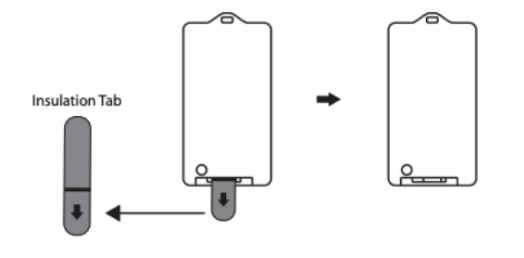
Remove the insulation tab of the remote control.
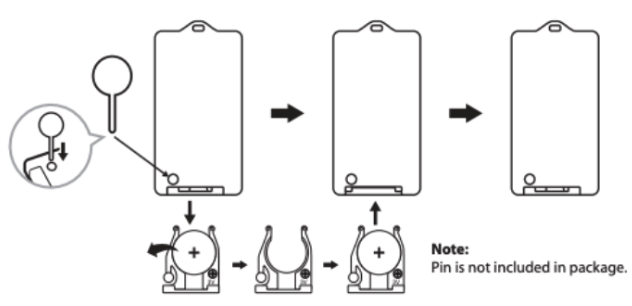
BATTERY REPLACEMENT
1. Locate the push button near the battery tray at the rear.
2. Using a pin or similar object with a fine tip, press and hold down on the button while pulling on the battery tray to disconnect the tray from the remote controller.
3. Remove the pin and continue to pull the battery tray out completely.
4. Replace the old battery with a new one (battery type: CR2032). Be sure the new battery is installed with the correct polarity (+ and -).
5. Push the battery tray back into the remote control.
How to use the remote control and foot pedal controller:
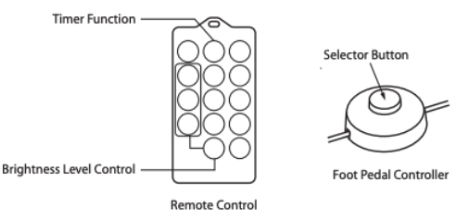
On the Remote Control, simply press the button to choose the desired light effect.
On the Foot Pedal Controller, press the selector button to browse among the light effects.
(1) Combination
(2) Clear Steady
(3) Color Steady
(4) Clear Twinkling
(5) Color Twinkling
(6) Clear Fading
(7) Color Fading
(8) Clear & Color Alternating
(9) Clear & Color Fast Blinking
(10) Clear & Color Slow Blinking
(11) Clear & Color Fading
(12) Off
To turn off the lights using the Foot Pedal Controller - Press & hold the Selector Button for 3 seconds to turn off. Using the Remote Control - Press the On/Off button again.
To turn on the lights using the Foot Pedal Controller - Tap the Selector Button to turn on the lights. Press again to switch functions: Using the Remote Control - Press the On/Off button once.
There are five brightness levels available in the Clear Steady, Color Steady, and Clear/Color Alternating modes. Use the "Brightness" button on the Remote Controller to increase or decrease the brightness level, one level at a time with each press.
Demo Mode:
NOTE: These trees offer Demo Mode. In this mode, the light effects are displayed one by one in sequence until another light function is selected. This temporary light effect will last for 15 seconds before returning to Demo Mode.
Foot Pedal Controller + Remote
To Activate Demo Mode
Using the Foot Pedal Controller - Press and hold the button on the Foot Pedal Controller for 10 seconds.
Using the Remote Control - Press and hold the "Combo" button for 5 seconds.
The clear lights will blink 3 times, indicating that DEMO mode is ON.
The tree is now in demo mode.
To Deactivate DEMO Mode
Using the Foot Pedal Controller - Press and hold the button on the Foot Pedal Controller for 10 seconds.
Using the Remote Control - Press and hold the "Combo" button for 5 seconds.
The multicolor lights will blink 5 times, indicating that DEMO mode is OFF.
The tree is now in normal mode.
Light Controller (Control Box)
To Activate DEMO mode:
Using the Light Controller - Press and hold the selector button for 10 seconds.
The clear lights will blink 3 times, indicating that DEMO mode is ON.
The tree is now in demo mode.
To Deactivate DEMO mode:
Using the Light Controller - Press and hold the selector button for 10 seconds.
The multicolor lights will blink 5 times, indicating that DEMO mode is OFF.
The tree is now in normal mode.